Getting started with Cursor AI
Prior to 2025, I was quite sceptical of the whole AI trend, outside of occasionally using ChatGPT. This changed at the end of 2024 when my work started an internal pilot for trying out Cursor - a coding IDE. Since then I’ve been using it at work every day, and also have a subscription for personal use on my days off.
The following guide is for the latest version of Cursor 2.2, which was released on the 10th of December 2025. Cursor is changing all the time, and continuously introducing new features, so this guide may not be 100% up to date. I’ll admit I also don’t use all of Cursor’s features - in this post I just lay out the way that works for me.
Why use Cursor?
My current opinon on AI coding, after a year of using it, is that it really is a great tool and a decent productivity-booster for an experienced engineer. I’m primarily a frontend React engineer, and I find that when it writes React code for me, I can skim it and immediately know whether it’s doing a good job, or if it’s writing shitty code. And so overall it’s a net-positive for productivity.
On the flipside though, I’m not a strong backender, so although it’s been very useful in writing basic backend code for me (whether it be Kotlin at work, or Rails at Hardcover), I can’t look at the code and be confident that what it’s written is actually “good” backend code or not. And I’m not sure that continuing to use AI like this is actually ever going to help me to develop the skills to be a good backend engineer, so that is a bit of an open question for me on how I can upskill myself when I am delegating things out to AI. It also does make me a little worried for the junior engineers of today.
Since Cursor is an IDE that looks identical to VS Code, for existing VS Code users it’s really easy to dip your toes in. You can install and use Cursor without actually using the AI, if you wanted to, and your coding experience would be exactly the same. And once you’re ready to try out the AI it’s right there for you, so the barrier to entry is really low.
I have also considered making the switch to Claude Code - so I may try it out next year and see it goes.
Introducing Cursor’s UI
Cursor has gone through so many design changes since I began using it that it’s kind of hard to keep track. If you want something that’s the closest to VSCode, you will want to start in Editor mode, which you can see in the top left corner of your window:
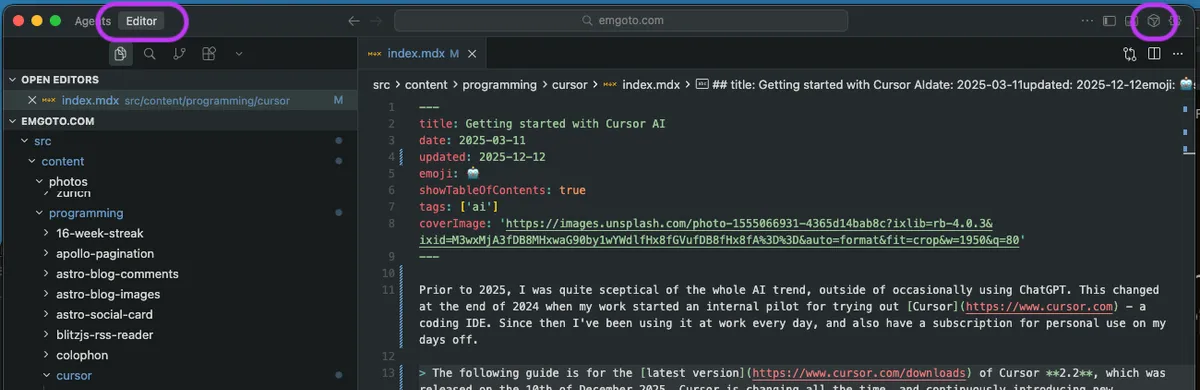
To open up the AI chat sidebar, you can type “Cmd + I”, or click the little diamond icon in the top right corner of your window (which I’ve also circled in purple). I’ll get to the AI chat sidebar in a moment.
Cursor’s autocomplete feature
If you’re not comfortable diving straight into the deep end of AI, the first place Cursor will show its value is with its autocomplete feature. As you begin typing, Cursor will show suggestions for what you should type next. All you have to do is hit the tab key to use it.
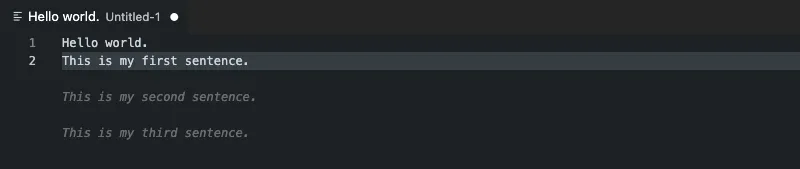
Cursor is quite good at predicting your next move when it comes to doing repetitive stuff. Maybe if you had a bunch of arrays with strings in them that were missing double-quotes - you could add double-quotes to one string, and Cursor would know to update the rest for you. It’s those sort of little repetitive things that add up and can be a real time-saver.
It’s also able to jump you around the code, say for example you changed the name of a function somewhere - it’s intelligent enough to prompt you to hit the tab key, and it will jump you up to the usages of it.
Over time you’ll be able to get a sense of what it’s good at auto-completing.
Ask Cursor a question with Chat
Once you’re ready to dip your toes in, you’ll want to try out Cursor’s Chat mode. If you’re not sure where to start, I recommend treating it like you would a Google search.
To open Cursor’s AI sidebar, you can type Cmd + I and it will bring up a new sidebar in your IDE.
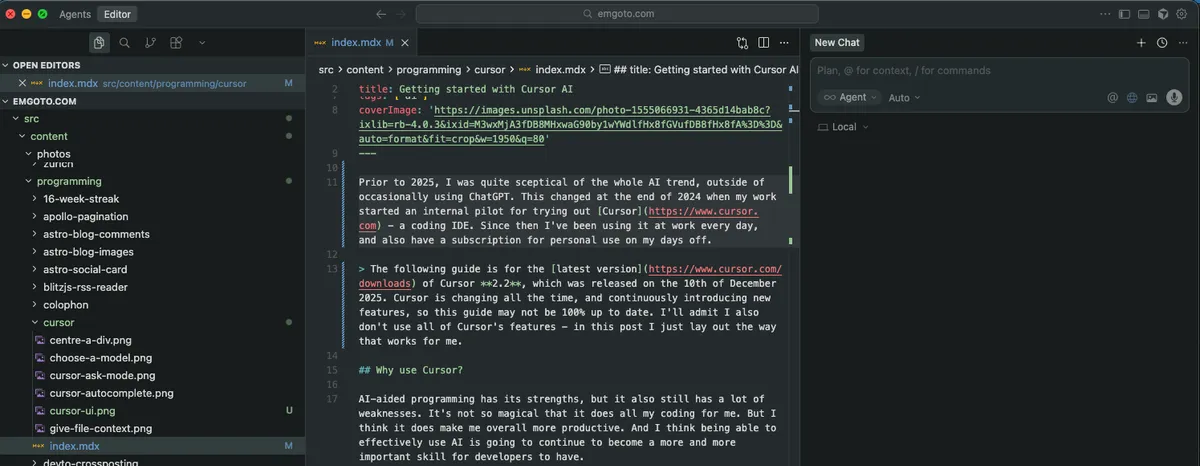
From here, you can ask it a question:
💬 How do I centre a div?
Chat will output a full response pretty quickly, and it’s quite convenient compared to a Google search, as you don’t even have to leave your IDE.
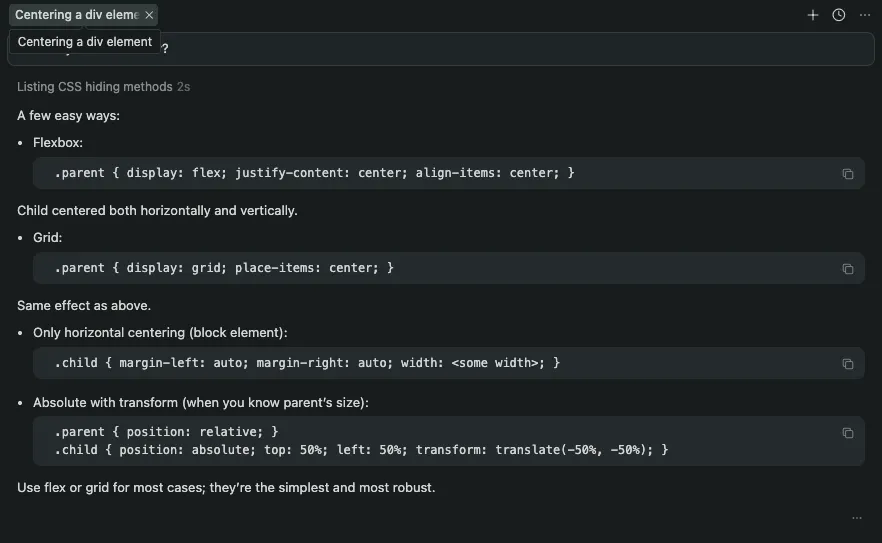
The caveat here is that AIs tend have a tendency to “hallucinate” or be confidently incorrect. For a CSS question like centering a div, I’m sure that exact question has been asked on Stack Overflow before and so it’s quite good at answering it. But the more niche the question, the more you need to take it with a grain of salt. If you are not sure of its answer, you can ask it to “please provide sources” and it may re-evaluate and realise it lied to you in its previous response.
Choosing a model
The next thing you might notice about the chat sidebar is that you have the option to choose a model from the dropdown. By default, you might have the Auto option selected:
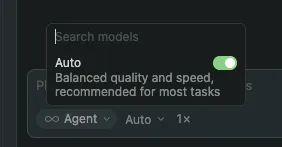
Otherwise, you can click on it and choose a specific model:
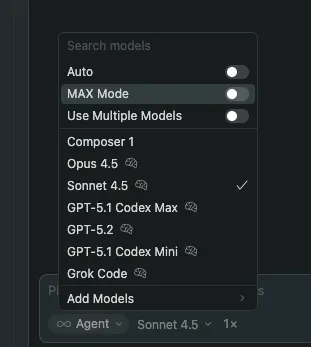
Sometimes I choose a certain model (I like Claude Sonnet) however although with Cursor you have unlimited usage of its AI functionality, there is a cap on how much you can use the more expensive models. So once you run out, you will fall back to “Auto” (which presumably uses a dumber and/or cheaper model).
How to give Cursor context files
So you can use the Chat like you would a Google search, but where it shines is asking it questions about your actual code. Instead of asking it how to centre a div you could ask it “how do I centre this div?”
Give code snippets by highlighting code and using Cmd + I
When I originally wrote this post at the start of 2025, Cursor wasn’t too good at knowing what you were talking about. If you first highlight code before pressing Cmd + I, that code snippet, a will be given to Cursor as context when you ask your question.
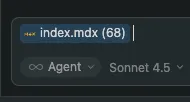
Nowadays though, I find it’s quite good at knowing what you’re talking about, so I don’t highlight code as often.
Search for files using @
You can also use the @ symbol in chat, and search for files you want to add as context.
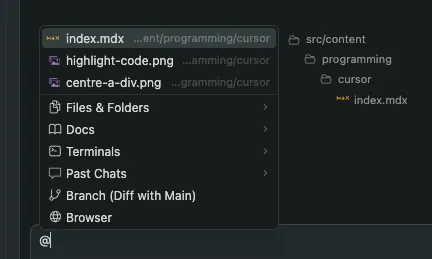
This can be useful if you want to be like “please add unit tests to this file here”.
Drag and drop to add files or folders to context
As a side note, you can also drag-and-drop files or folders from your file explorer bar in the left to the chat in the right.
Cursor’s different modes: Ask vs Agent modes
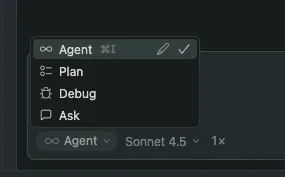
If you click the little “Agent” button in your Chat window, you’ll notice there are a number of different modes you can choose from.
To be honest, I always leave mine in “Agent” mode at this point. The only downside of Agent mode is that sometimes the AI is a bit too eager to make changes to your codebase. Sometimes you just want to ask a question without it touching your stuff!
In that case, you can swap to the “Ask” mode, whichcan’t make any code edits.
I’ll admit I didn’t even know about the other two modes - Plan or Debug - but it seems like Debug mode was literally added 2 days before I updated this post.
Give Cursor instructions with Project Rules
If you find yourself repeatedly correcting the AI - maybe there’s a specific syntax or code structure you want it to follow - you can add specific things to its Project Rules. This is a new feature that I haven’t any time to explore yet, but my one suggestion is to use the AI to generate the rules as you need it. e.g. after I get it to fix up a mistake, I will ask it:
💬 Can you suggest what I should add to my project rules so that you don’t make this same mistake in the future?
This saves you a little brainpower so you don’t have to generate the instructions yourself! Once you’ve gotten a handle on using Cursor, it may be worth investing your time in using this feature. One of the things about AI is that although it can generate technically correct answers, sometimes the style of code it writes can be very different to how you would usually write it. To save you inevitably having to fix it up yourself afterwards, you can just add something new to its rules to save you time going forward.
My company’s codebase has a lot of little style quirks that I want the AI to follow, so I was quite heavily using the .cursorrules file (the predecessor to Project Rules). However I found that the longer the file got, the AI would end up ignoring chunks of it anyway - I guess there’s a limit to how much it can hold in its brain. Nowadays the AI seems smart enough that I don’t need to resort to giving it rules as much.
Use cases and practical examples
After 2 months 1 year of using Cursor in both a work and hobby programming context, here are some of the use cases that I find it does best at.
Finding bugs and fixing them
I work part-time on a book tracking app called Hardcover and I find that Cursor has been great for helping me debug issues. It generally can land on a fix as well - but the code can be a bit shit so I have to fix it up.
However results really can vary here. Hardcover has a relatively small codebase - let’s say a max of 10 engineers have been working on it at various points part-time over the last 5 years. In comparison my full-time job has me working on a codebase where hundreds of engineers are pushing code to it every day (I don’t really have the lines of code stats but it must be massive). Cursor is not nearly as useful there at finding bugs.
Ask it to do something based on a reference file or tutorial page
Cursor is only as strong as the explanation and commands you can give it - it can’t really read your mind (yet). So giving it a reference makes it easier for it to understand what you want from it. If you come across a solution to your problem on Stack Overflow, you can directly link that in your Cursor Chat, and ask it to implement a solution based off of that.
Or maybe if you come across a React tutorial for implementing a specific component, Cursor is pretty good at following those instructions and adding it to your codebase.
I’ve recently been converting our old WebDriver integration tests into Playwright at work - and there’s a couple of quirks with the way we are setting our Playwright tests up. After I got Cursor to convert the first file and fixed up any mistakes it made, I pointed it back to that first file as a reference when I got it to convert the other files, and I found it got better at doing it.
Ask it beginner-level questions for a domain you’re not familiar with
As a frontend engineer, I might on a rare occasion help out in my team’s Java or Kotlin codebase, and I really have no idea what I’m doing there. People often say that Cursor or AI can be treated like a junior-level programmer - and so in that sense, Cursor can be good at doing junior-level things for areas that you have completely no expertise in.
e.g here are the sorts of questions I have asked it for backend things:
- This unit test is failing, but I can’t figure out why, can you help me fix it?
- The build is erroring saying there’s something wrong on line 192 but I can’t figure out which file it’s referring to, can you tell me where? (and I copy-paste the build error)
Similarly with Hardcover, it’s been great for helping me write backend Rails code. I will say the main downside is that I don’t think I’m learning as much by having it write its code for me. I do thoroughly double-check and research on the code it’s writing though, since I’m a bit suspicious of its output.
Treating it like Google and asking for CSS help
As a frontender I would say I’m most likely to use Google to ask for “how to do X in CSS”. Cursor can have mixed results on this. Sometimes I might ask it to fix one problem, and then it ends up introducing another, and there’s a bit of a back and forth before I find it fully fixes all the problems. Sometimes after all the CSS changes, it works but the code looks a bit shit. In that case, I will ask it one final question like:
💬 Can you double-check this CSS and make sure this is the best possible approach?
But I have found it quite helpful in finding and fixing a CSS bug that after much staring, I wasn’t able to figure out on my own. So I would say its overall net-useful.
Asking it to write a script for repetitive changes
Let’s say you had a JSON with 100 objects in it, and you wanted to change the structure of it. I wouldn’t recommend asking Cursor to just straight-up fix it for you: it can be quite prone to screw something up along the way, especially the larger the file is.
However, it can write you a script that you can just execute yourself, and then get perfect results. I don’t use JSON files so much at work, but I store a lot of blog posts and data about mountains on my blog, and I find it comes in handy there when I want to make a repetitive change across all of my files.
Asking for alt text on images
When adding images to hiking posts on my blog, I always try to add alt text to them. Cursor is great for generating alt text for all of the images. When I used to be on the free tier of Cursor, which uses a “dumber” AI, I don’t think it can actually see the images, and just tries to make up alt text based off of the file names and the text surrounding the image. This came with mixed results. On the paid tier of Cursor though, I think it can actually see the images, so it does turn out a lot better. Although I will give it a pass through and update the stuff that needs editing.
Asking it to find typos and grammar mistakes
For blogging, it’s also been super useful at finding my typos for me. To be fair, I probably don’t need AI to do this (there have been typo-checkers around forever now) but it’s nice and easy to do it from within my IDE before I hit publish on a new blog.
When I don’t use Cursor (at work)
Ultimately, AI-aided programming gains its knowledge from all the code out there on the internet. So it does pretty well when I want to add a React component to blog, but I find it less effective when dealing with my company’s codebase. We have a lot of niche utils and very specific but implicitly understood code style rules that I’m very used to from years of working here, but that the AI really has no idea about.
Generally speaking, I’m not finding Cursor is quite good enough to fully implement a feature that I’m working on at work. With the hassle of the back and forth of trying to explain the feature, which util functions it should be using, needing to use feature flags and telling it where all the files live, it’s still faster to implement it myself.
On the flipside, Cursor works pretty well on Hardcover’s codebase, and on the codebase for this blog that you’re reading, so results really do vary.
Using Cursor to generate unit tests
The one place where I’m experimenting with Cursor at work at the moment is using it is for unit tests. I feel like this fits the use case for AI - it’s a repetitive task that can easily be pointed to with reference files. I generally try and ask it:
💬 Looking at my changes in file Y, can you add/update the unit tests in file X? Please reference file Z for an example of how to write unit tests.
I will say, it’s not perfect and sometimes has mixed results, but I think it may be a little bit faster than attempting to write it all out manually myself. Like I mentioned earlier in the post with .cursorrules, I have been continuously adding to my Cursor rules file with all the specific “this is how you should write a unit test” type of rules over time.
Generally after it writes the test, I get it to run it, and it’s so-so at debugging and fixing the test failures itself. Most of the time I do have to step in a bit - it’s a bit guilty of over-writing unit test cases.
Other tips for Cursor
Get it to confirm before coding
Before diving in, I’ve found it helpful to get the AI to play back your requirements to make sure nothing is misunderstood. Simply tell it:
💬 Before writing the script, can you first play back to me what you are planning on doing, and I will confirm if you are on the right track or not.
This prevents the AI from immediately generating code that might miss some of your requirements.